1. Home
  2. Integration
  3. Acuity + Mailchimp

Acuity Scheduling → Verify → Mailchimp

Automatically verify email addresses when clients book appointments through Acuity Scheduling before adding them to your Mailchimp lists. Perfect for service businesses.

Use This Template
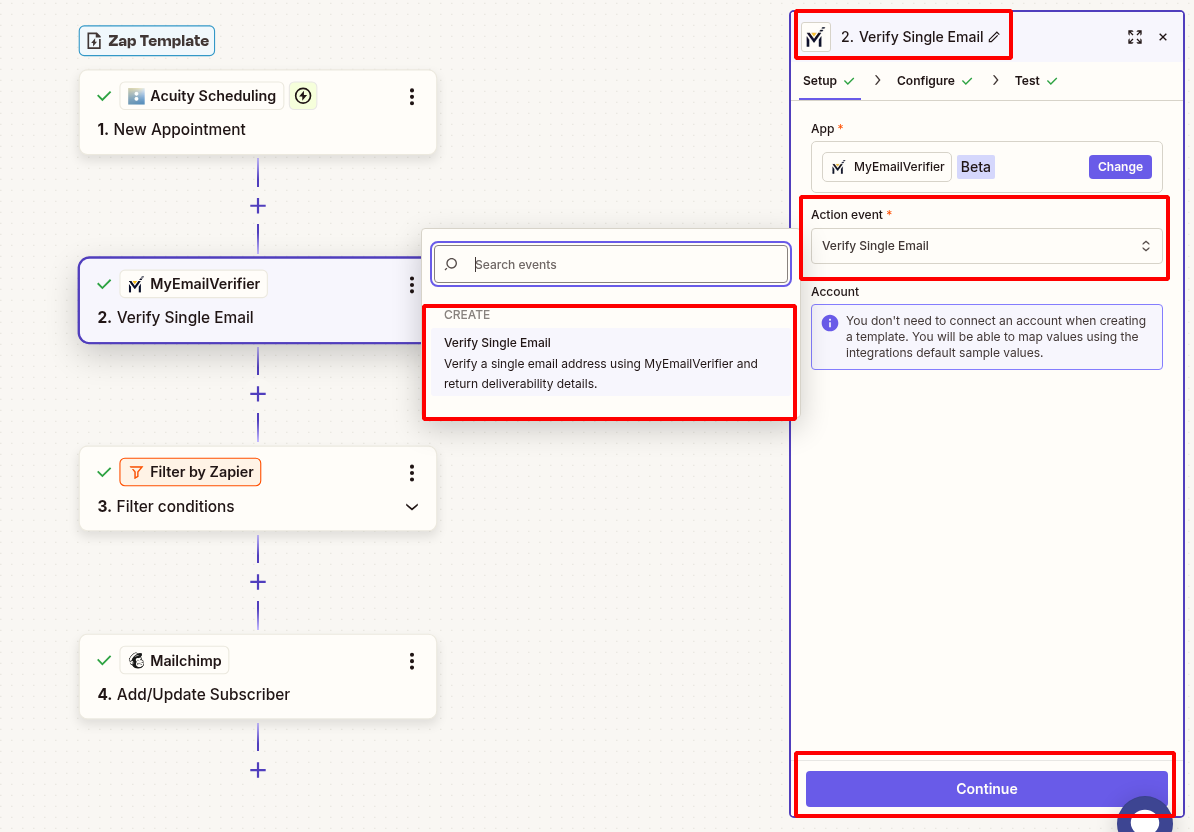
Acuity Scheduling to Mailchimp email verification workflow with Zapier automation

Why Use This Integration?

Reliable Appointment Communication

Ensure confirmations and reminders reach verified emails. Reduce no-shows by guaranteeing clients receive appointment communications.

Clean Client Lists

Build quality client lists automatically. Only add verified appointment bookers to your marketing campaigns.

Better Campaign Results

Send follow-up campaigns to deliverable emails. Improve client retention with reliable email communication.

Step-by-Step Setup Guide

Note: This workflow filters emails - only verified clients are added to Mailchimp. Invalid emails are stopped automatically.

1Connect Acuity Scheduling as Trigger

Set up Acuity to detect new appointment bookings:
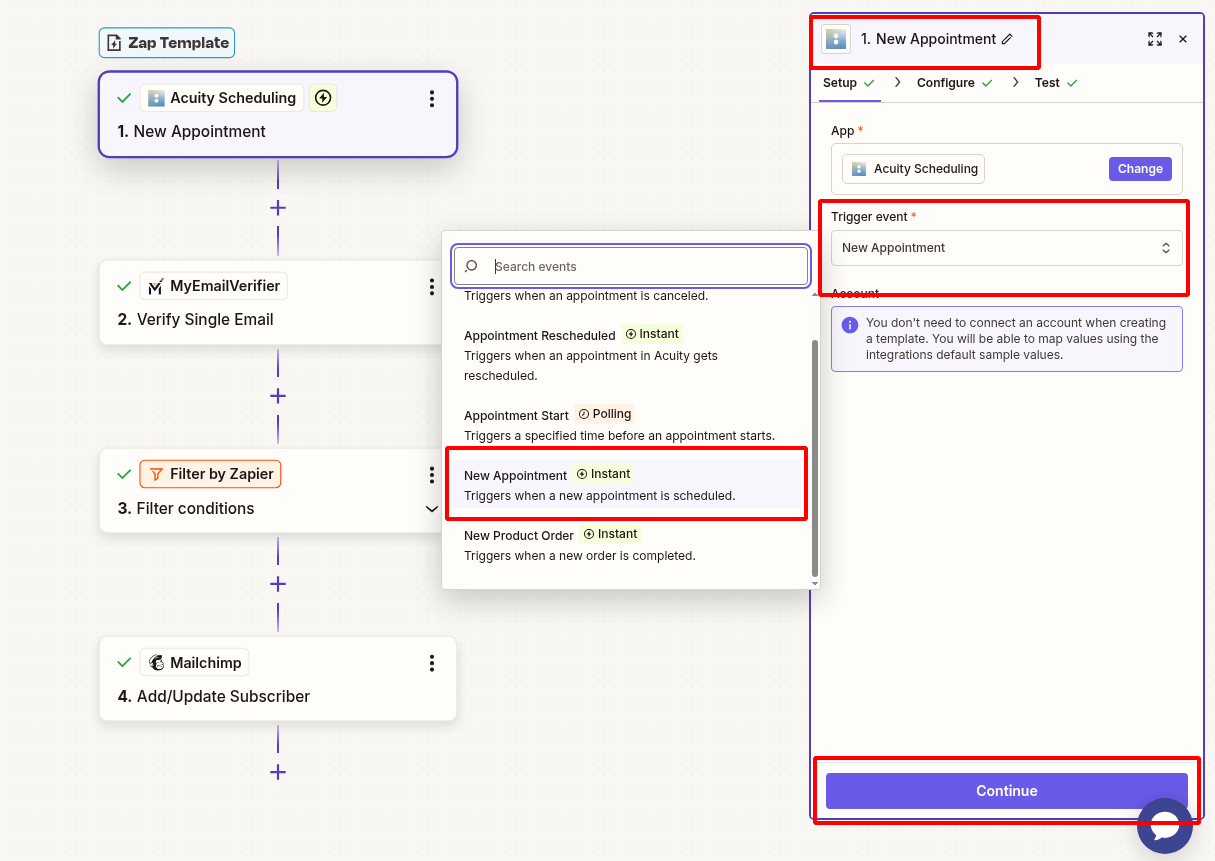
  • Log in to Zapier and create new Zap
  • Search for "Acuity Scheduling" and select it
  • Choose trigger: "New Appointment"
  • Connect your Acuity Scheduling account
  • Configure trigger settings (all appointment types)
  • Test to pull sample booking data
Connect Acuity Scheduling new appointment trigger in Zapier

2Add MyEmailVerifier Action

Verify the client email:

  • Click "+" to add action
  • Search for "MyEmailVerifier"
  • Choose: "Verify Email"
  • Connect your MyEmailVerifier account
  • Map Acuity client email field to verification input
  • Test to see verification results
MyEmailVerifier verify Acuity Scheduling client email in Zapier

3Add Path Filter (Only Valid Emails)

Only add verified clients to Mailchimp:
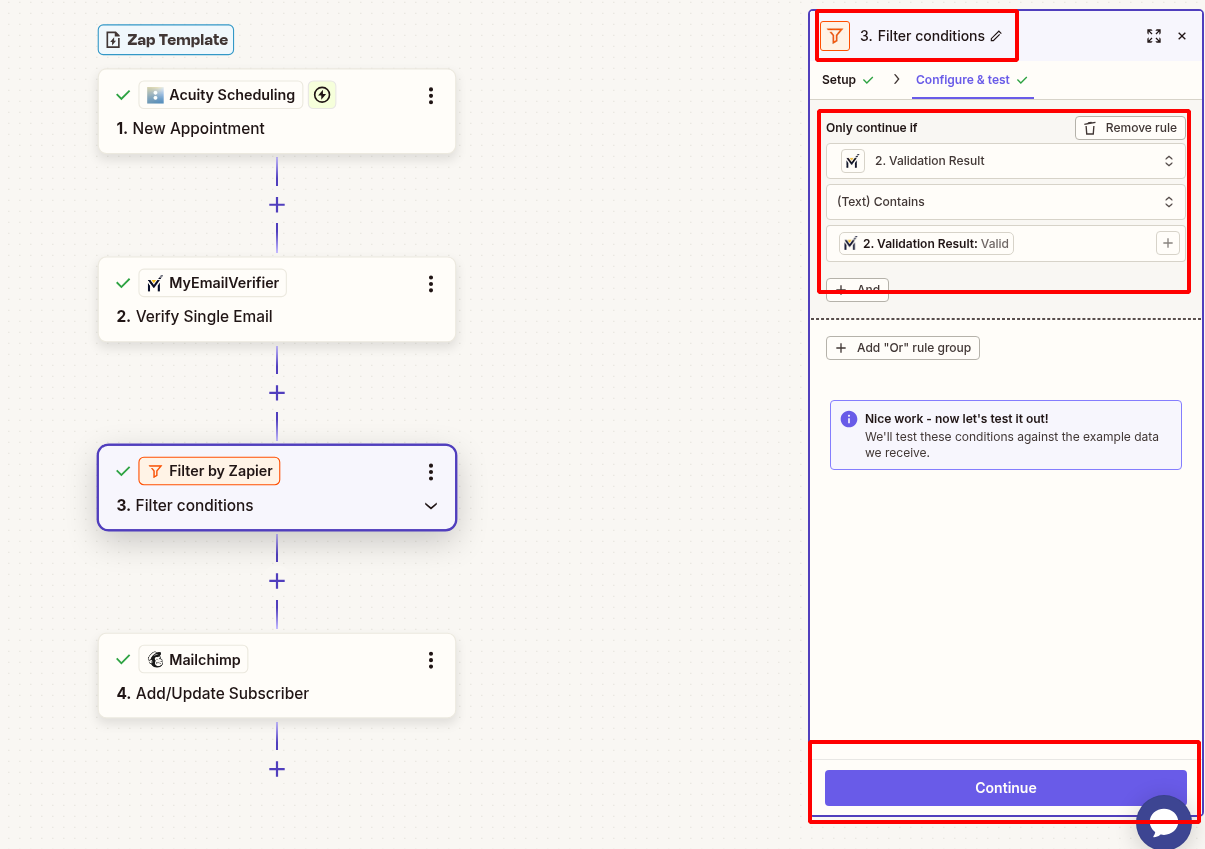
  • Add "Filter by Zapier" step
  • Set condition: Verification Status equals "valid"
  • This prevents invalid client emails from reaching your list
Zapier filter valid emails only for Acuity bookings

4Add to Mailchimp

Subscribe verified client to your Mailchimp list:
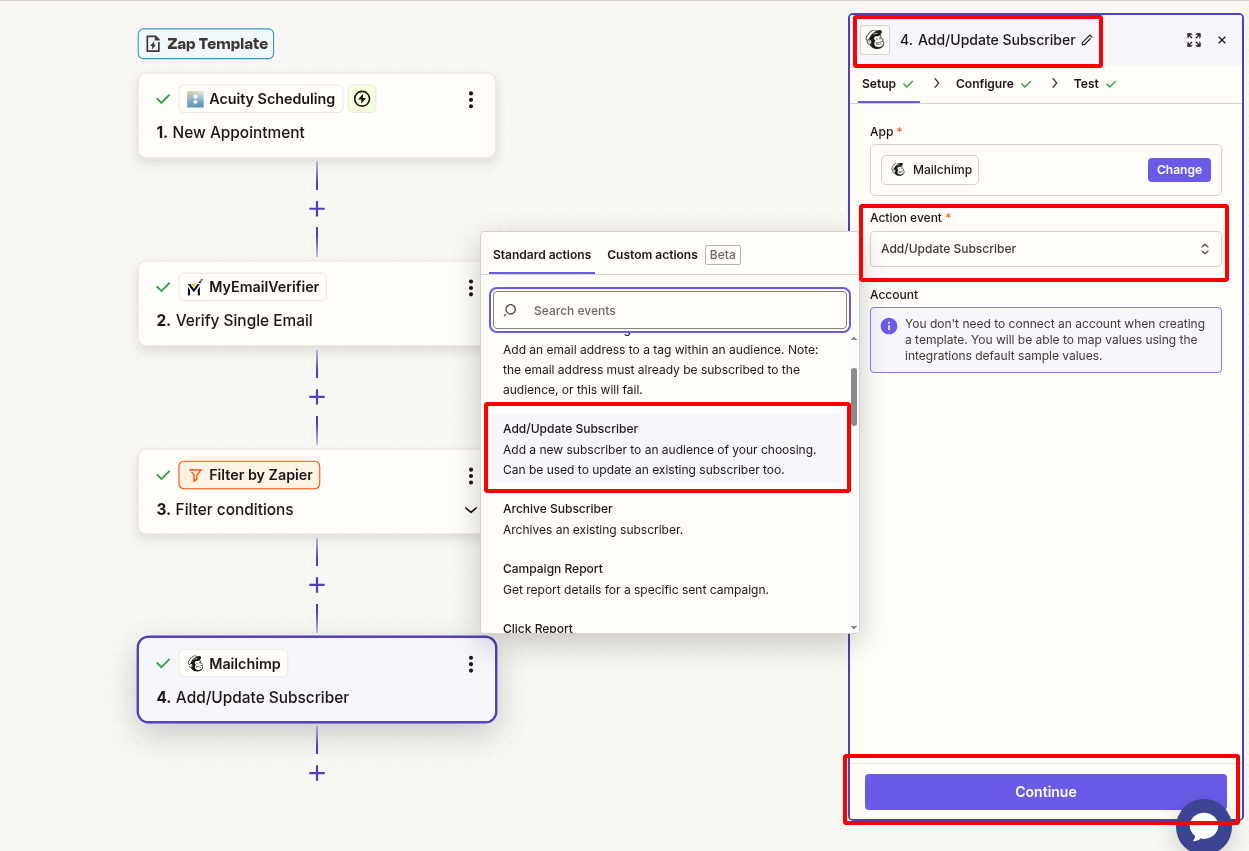
  • Add Mailchimp action: "Add/Update Subscriber"
  • Connect your Mailchimp account
  • Select target Audience/List
  • Map fields:
    • Email: Client Email from Acuity
    • First Name: First Name
    • Last Name: Last Name
    • Phone: Phone (if collected)
    • Tags: "acuity-client", "verified-email", service type
    • Status: Subscribed (or Pending if double opt-in)
  • Test to verify subscriber appears in Mailchimp
Add verified Acuity Scheduling client to Mailchimp

5Test & Activate

Verify everything works:

  • Test complete workflow with sample booking
  • Verify only valid emails reach Mailchimp
  • Check tags and fields are populated correctly
  • Turn on Zap when testing successful

Real-World Use Cases

Service Business Marketing

Scenario: Build client lists for salons, spas, clinics, or coaching businesses.

Benefit: Send promotions, tips, and updates to verified clients who have actually booked services.

Client Retention Campaigns

Scenario: Trigger re-booking campaigns to clients with verified emails.

Benefit: Improve retention rates by ensuring follow-up and re-engagement emails reach real clients.

Appointment Reminders & Follow-ups

Scenario: Send post-appointment surveys and additional service offers.

Benefit Maximize client satisfaction and upsell opportunities with reliable email delivery.

Ready to Automate Email Verification?

Set up this integration in minutes and add only verified Acuity clients to Mailchimp automatically.

Create This Zap View All Templates

MyEmailVerifier

Copyright © 2026 · MyEmailVerifier · All Rights Reserved